

Shopify Marketplace Mobile app- It enables the admin to quickly turn their live marketplace website into mobile app users.
Sellers can quickly navigate their Dashboard, Order History, and manage their products and orders as a result.
Furthermore, the buyer can also purchase seller products using the default functionalities of Shopify.
This incredible application enables businesses of all sizes to grow and expand into the mobile environment.
It provides a diverse selection of shopping possibilities from the marketplace to the customer.
It builds on the Shopify platform and allows for the conversion of a simple website into a Shopify Marketplace mobile app that is considerably more accessible.
Key Requirements
Firstly, you need to have a Mobikul Mobile application and then have to need to install the Shopify marketplace mobile application.
The following are the most important requirements for a Shopify-based Marketplace mobile app.
1 – The merchant must have a functioning Shopify website.
2 – A valid Google Play Store and Apple App Store account.
3 – The application must use a Real-time API to ensure order synchronization.
4 – Native apps are essential for both user experience and performance.
5 – Apple’s app store still does not enable hybrid/web apps. As a result, having a native mobile app is highly recommended.
Features
- At the front end, a list of vendors is displayed.
- Vendor sales and revenue may track quickly.
- Easy seller product management via the app, which allows for the addition of new products as well as the updating or deletion of existing ones.
- On the store, sellers can have their own ‘Profile Page.’
- From the Seller Profile Page, customers can rate the seller.
- The app is available in multiple currencies.
- All order-related notifications will send to the customer through email.
- At the admin end, it’s well-configured and simple to use.
Benefits
- Strengthening the store improves relationships and loyalty.
- The benefit is sale through mobile device exposures.
- Moreover, Improve consumer connectivity when they’re on the go.
- Extremely accommodating in terms of accessibility, responsiveness, and reachability.
- Always be visible and noticeable on the user’s mobile device.
- Helps in increasing consumer engagement.
- It also makes it simple to access an e-commerce site from a mobile device.
Install Shopify Marketplace Mobile App
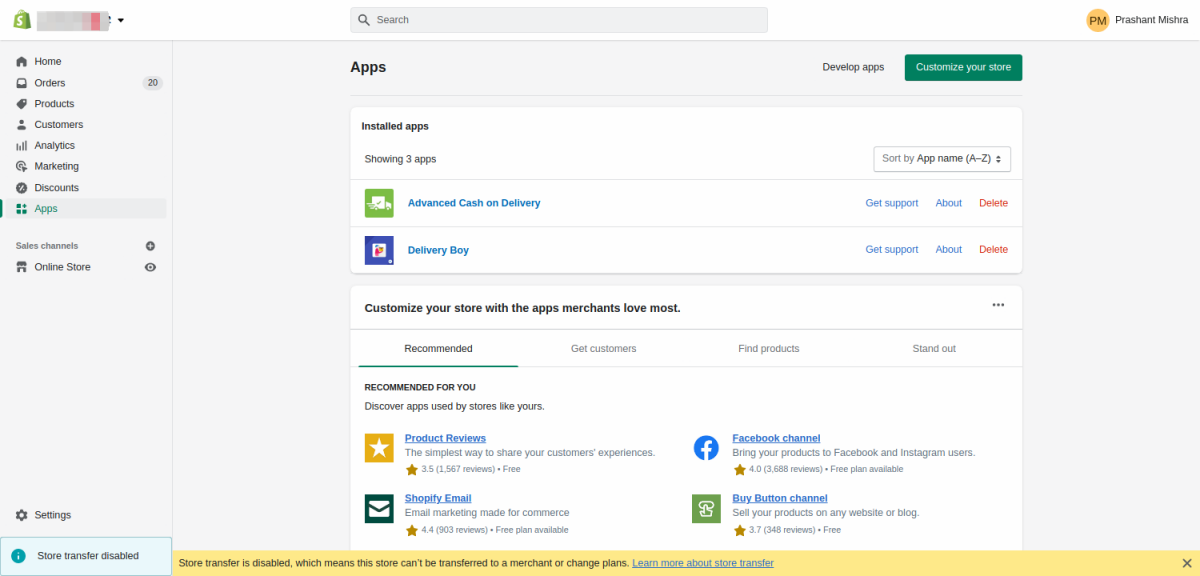
After logging into your Shopify account, go to the APPS area on the left-hand side panel. Simply open it up.
It will now redirect you to the Apps page.
Step1- The Customize your store button locates in the upper right corner; simply tap it. It will take you directly to the Shopify app store.
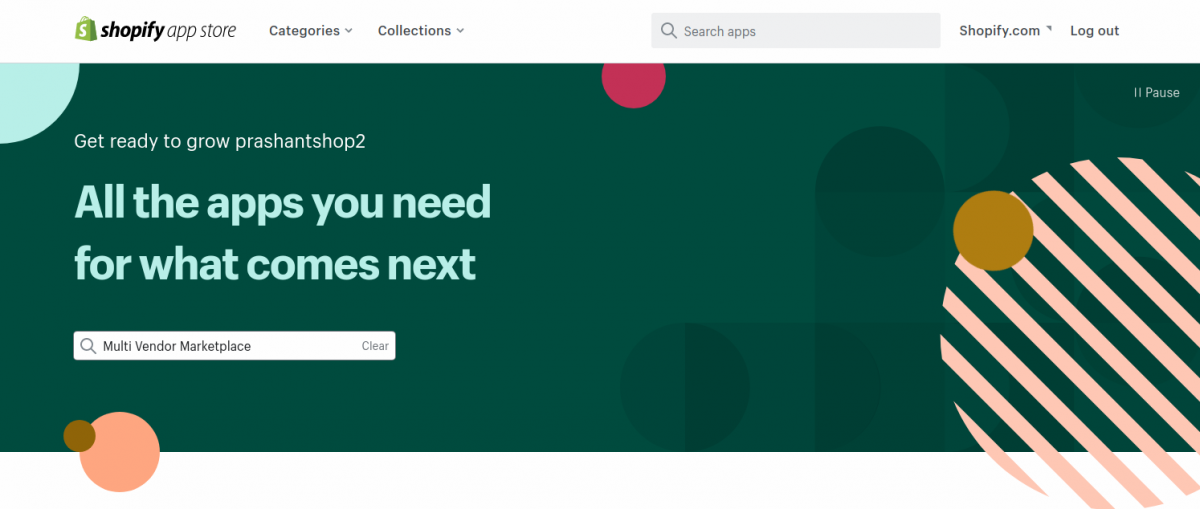
Step2- In the Shopify app store, type Multi-Vendor Marketplace Mobile App into the search box.
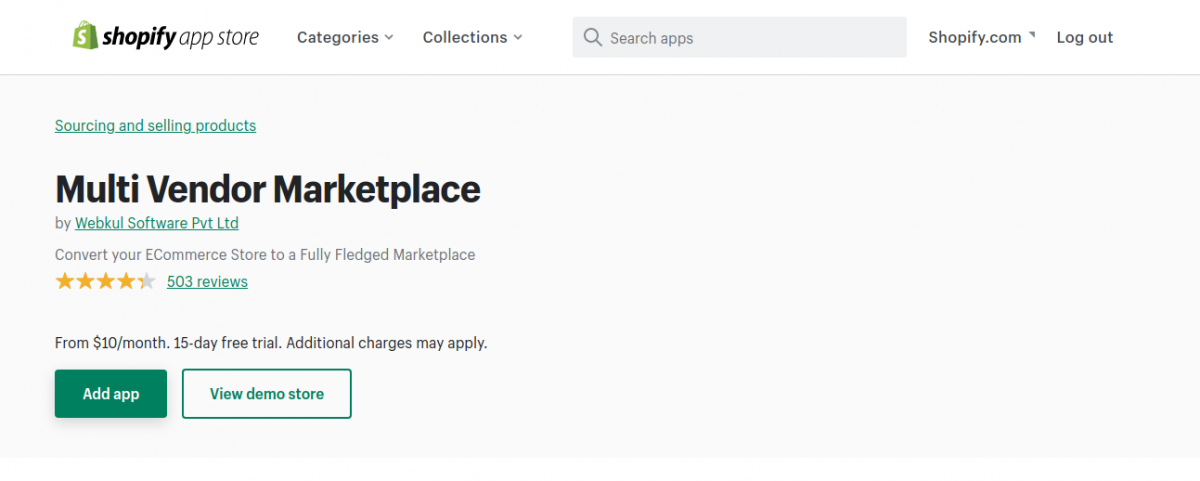
Step3- After tapping that, you’ll take to this page, which has the specifics of the Marketplace Mobile App Builder. This app should install in your Shopify backend. If you see the ADD APP button, simply click it.
Step4- After that, go to your Shopify store and just refresh it, and Mobikul Marketplace Mobile App will appear inside the Apps section for your store.
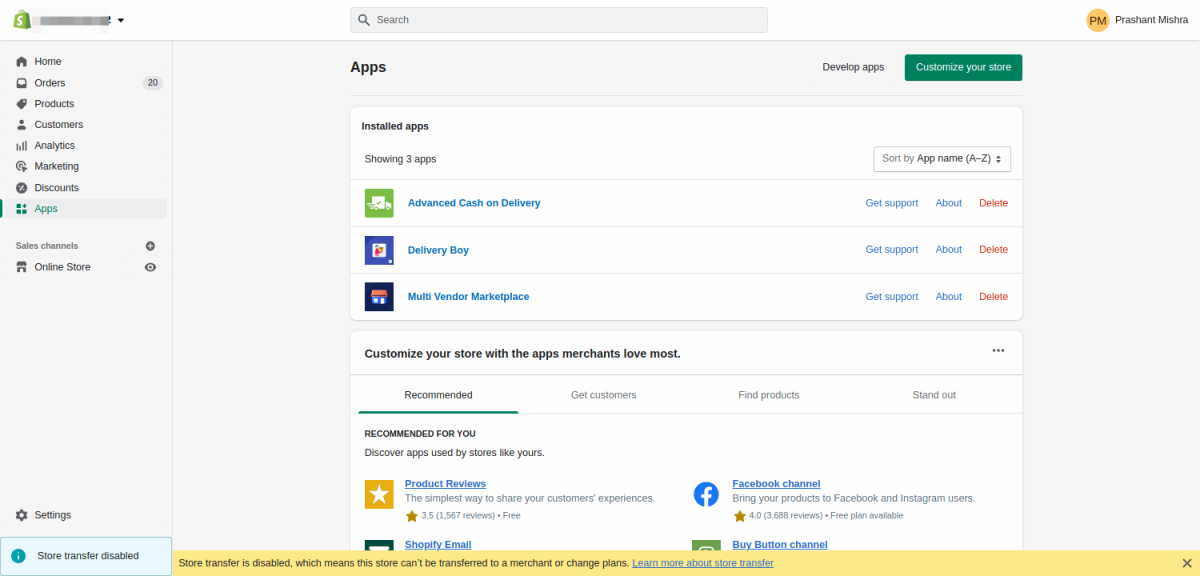
After, successfully installing the app and then will show the in-app section. Now, if we click on the Multi-Vendor Marketplace, then the seller dashboard will be shown as the below snapshot.
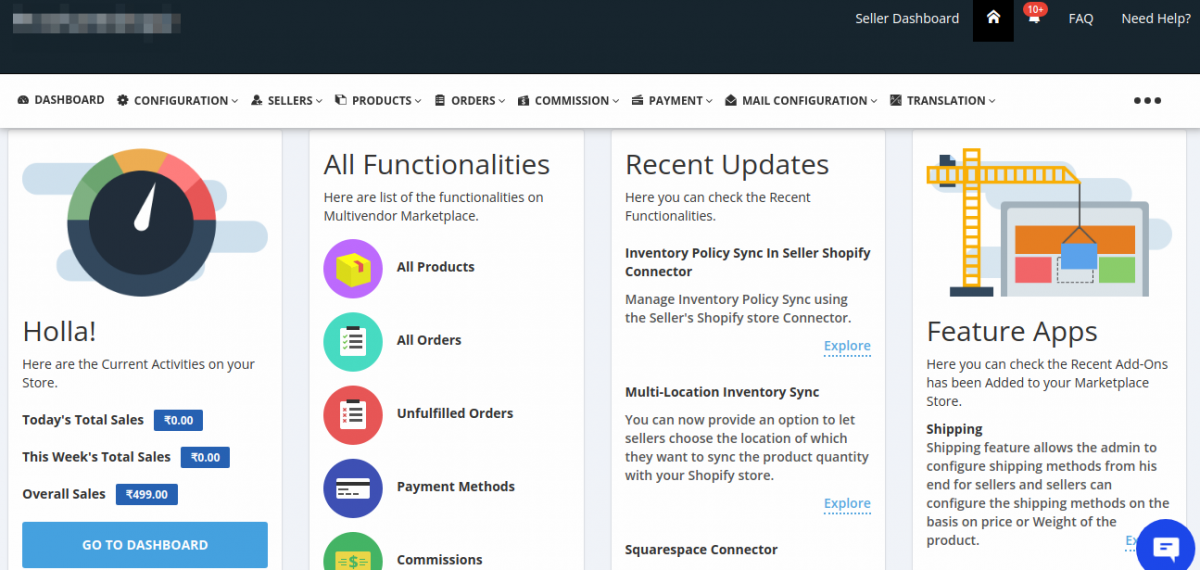
Afterward, to get more information related to configuring the seller panel of the Web app, please click here.
Shopify Marketplace Mobile App from the Front
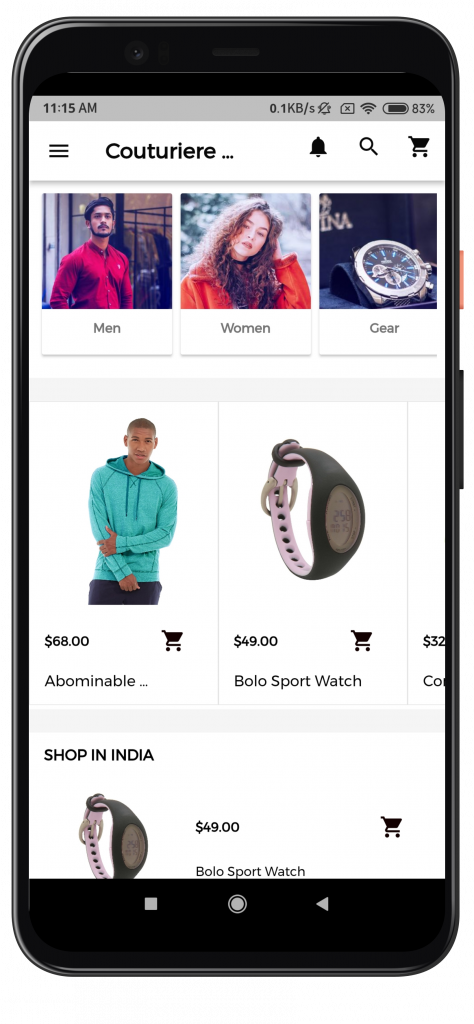
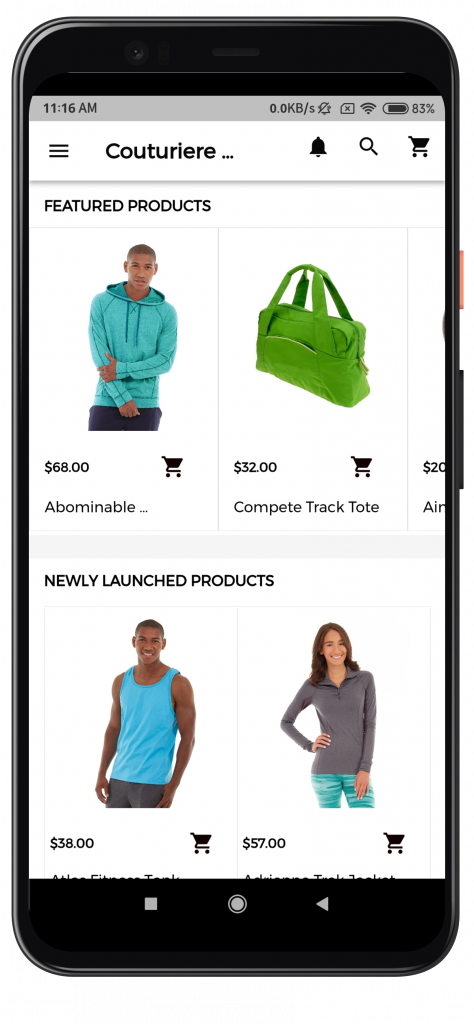
The app’s sliders and carousels are visible in the front view for customers. The carousel can add by the admin from their control panel.
Products and Categories
The Marketplace Mobile application, also shows all of the store’s products, along with their allocated and associated Sub-categories and Parent category.
That is, all of the store owner’s categories (Root category and Sub-Categories) and products that list on the store will also display in the Shopify Mobikul.
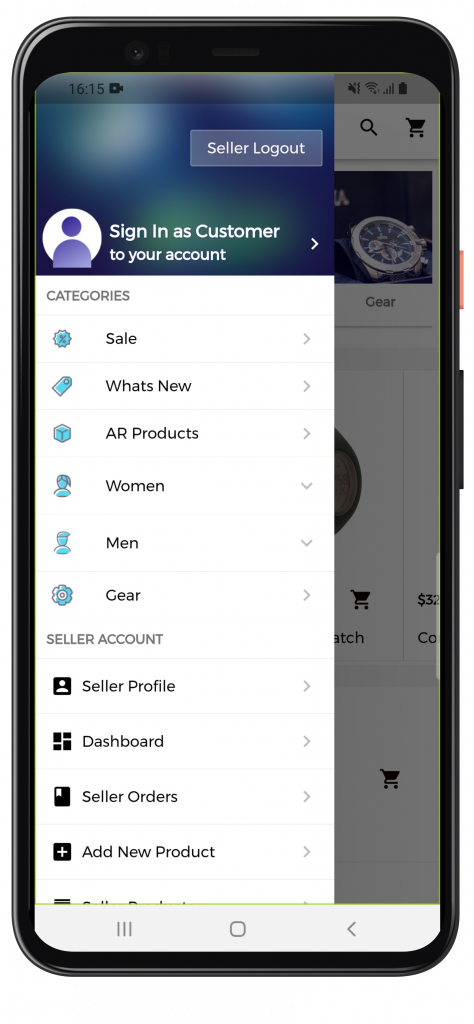
The mobile application, also shows all of the store’s products, along with their allocated and associated Sub-categories and Parent category.
That is, all of the store owner’s categories (Root category and Sub-Categories) and products that list in the store will also display in the Shopify Mobikul.
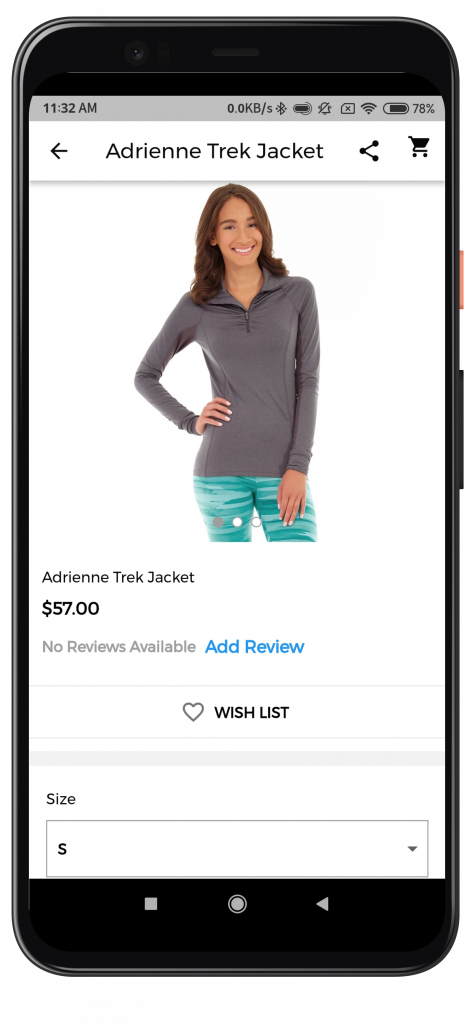
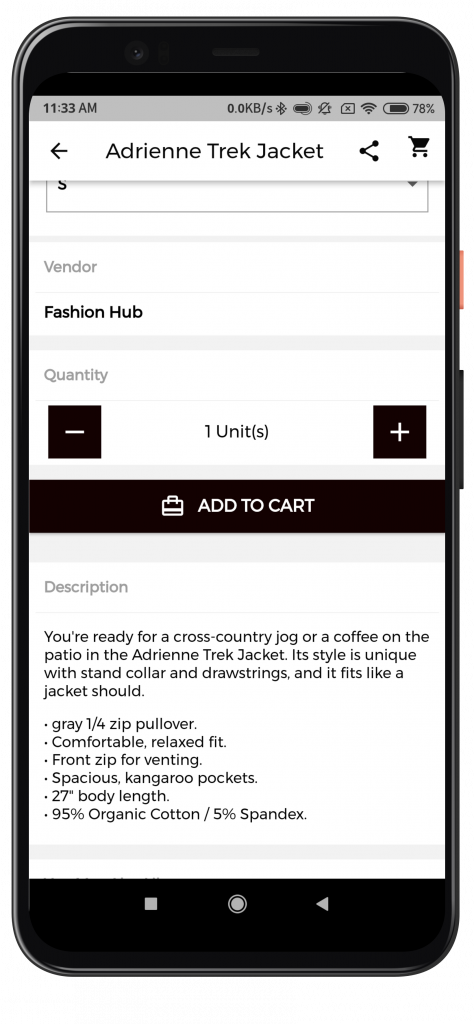
The product page will also provide the following information: Product Name, Price, Add To Bag Button, Buy Now Button, Product Share Button, Description, Specification, and Customer Reviews.
Add a New Product
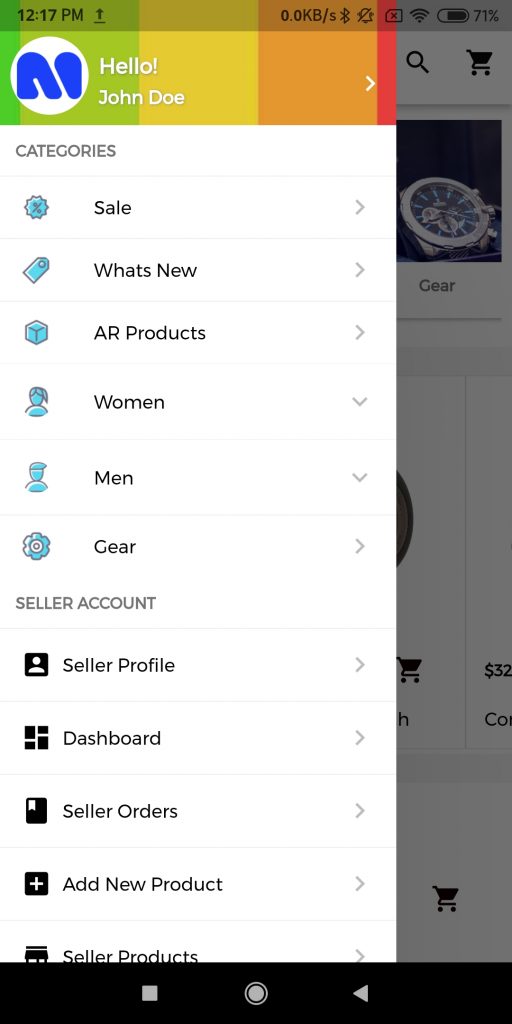
The seller can add the product from the app by going to the account section and selecting “add product.”
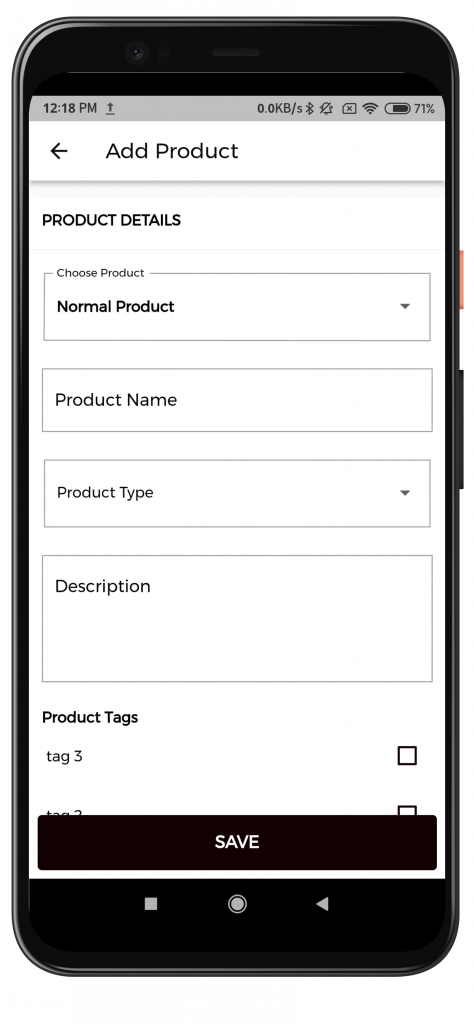
In addition, the seller must enter product data and save the product.
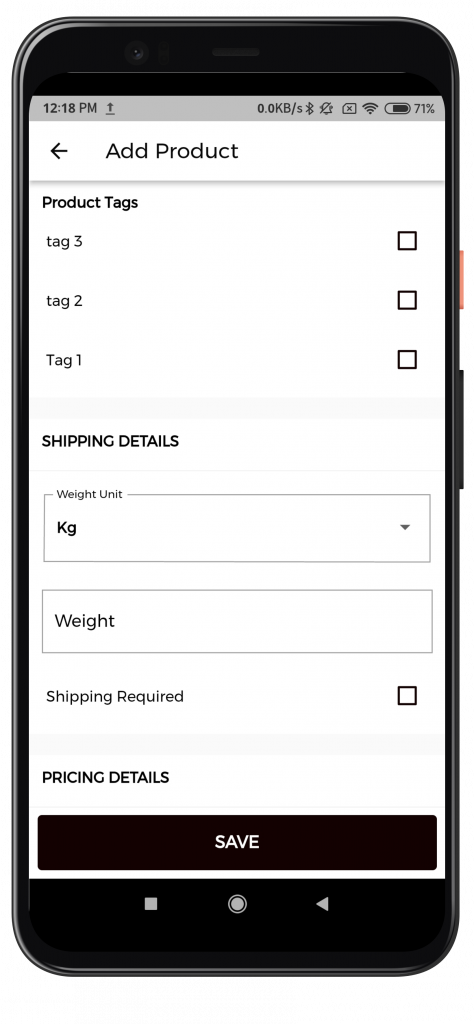
Afterward, In the second step, the seller must upload product photographs so that customers can select them from a gallery or click it right away.
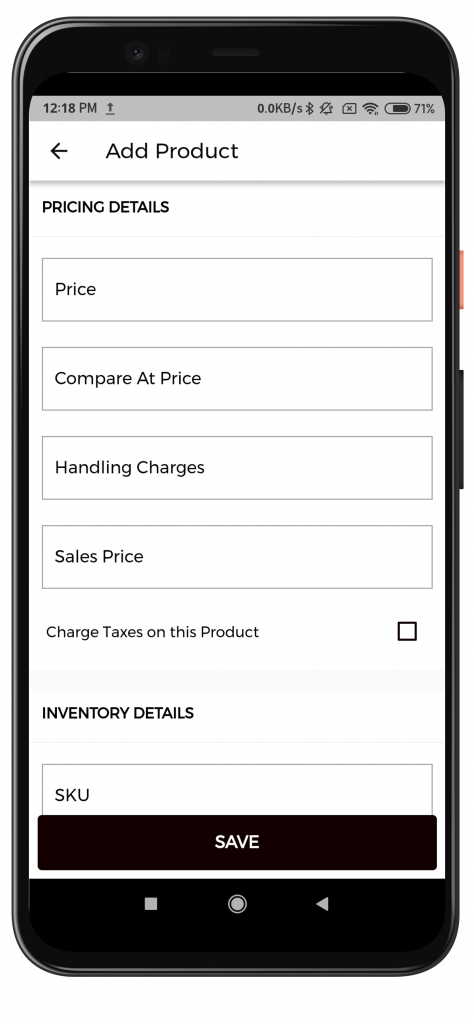
The seller can then add shipping information such as width, height, weight, depth, and so on.
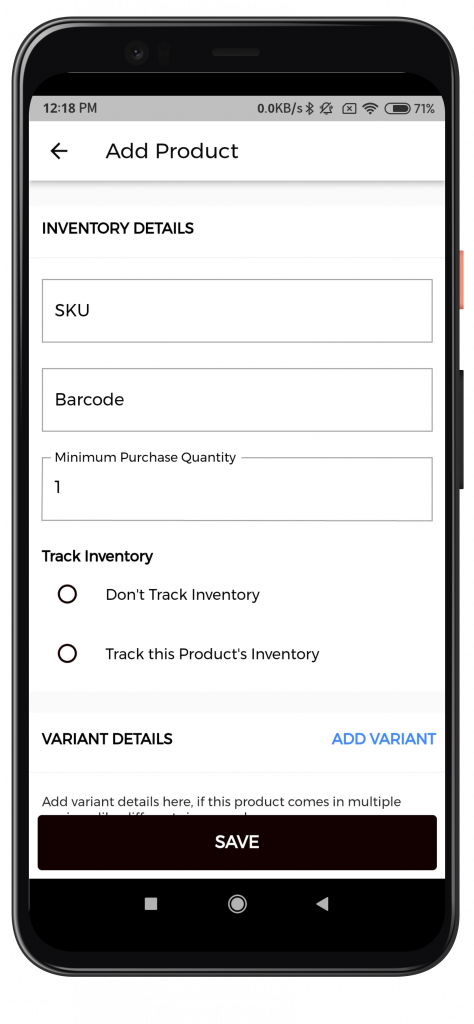
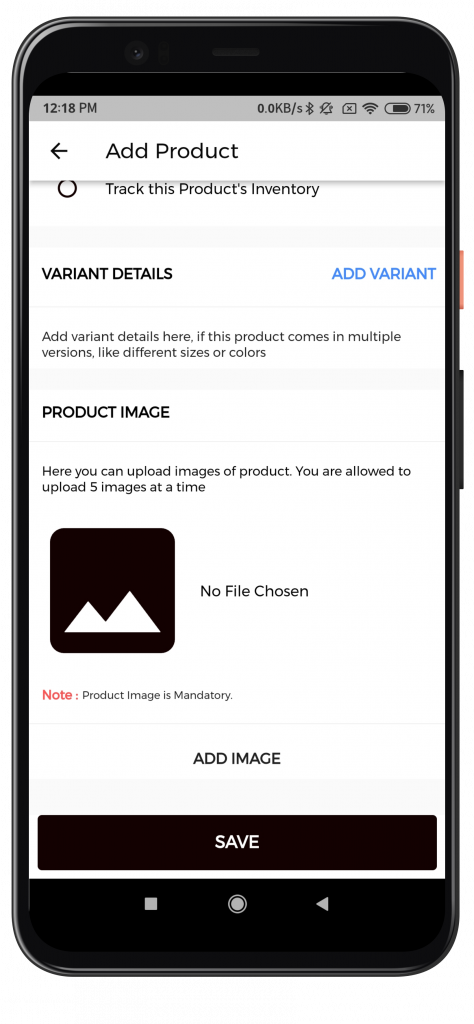
After that, the seller can fill out the product options and save the information. As a result, the item will add to the product list.
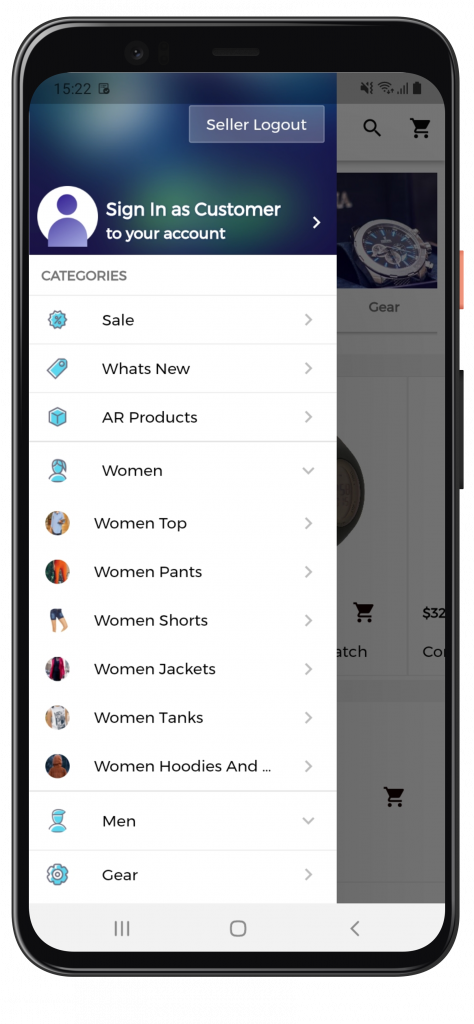
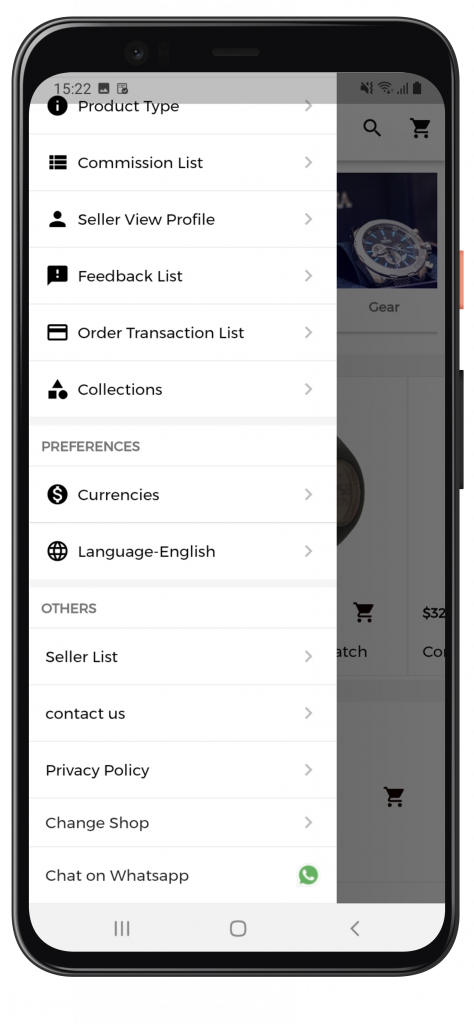
Drawer on the left for navigation
The customer may see the store’s categories, marketplace, and CMS pages in the left navigation drawer. The customer can also modify the store currency.
Feedback
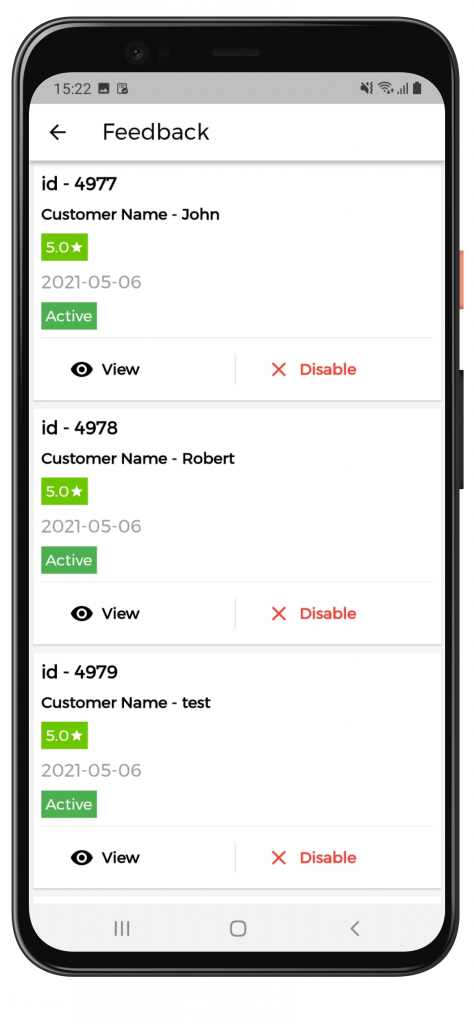
Sellers can also view the feedback from the customers and it is easy to manage it.
Commission
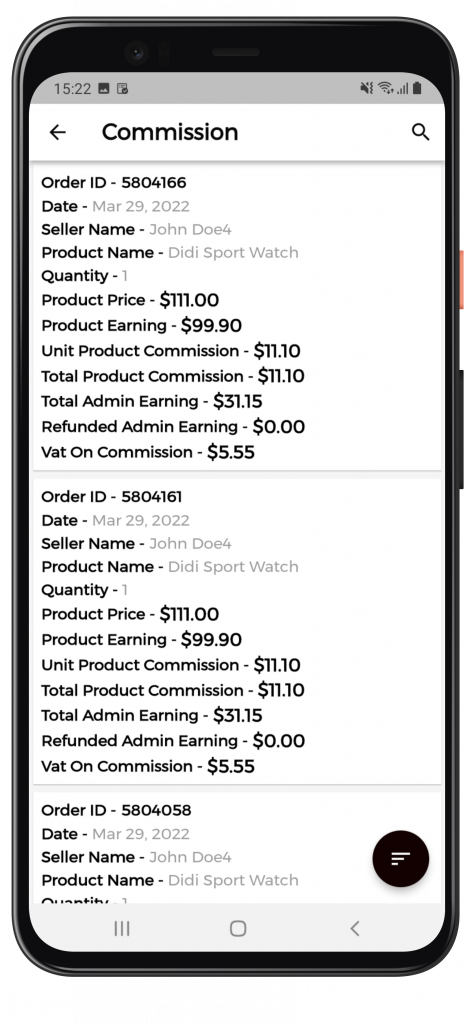
Admin can set the commission individually and globally for sellers. Afterward, the order is successfully delivered and then the sellers receive their commission.
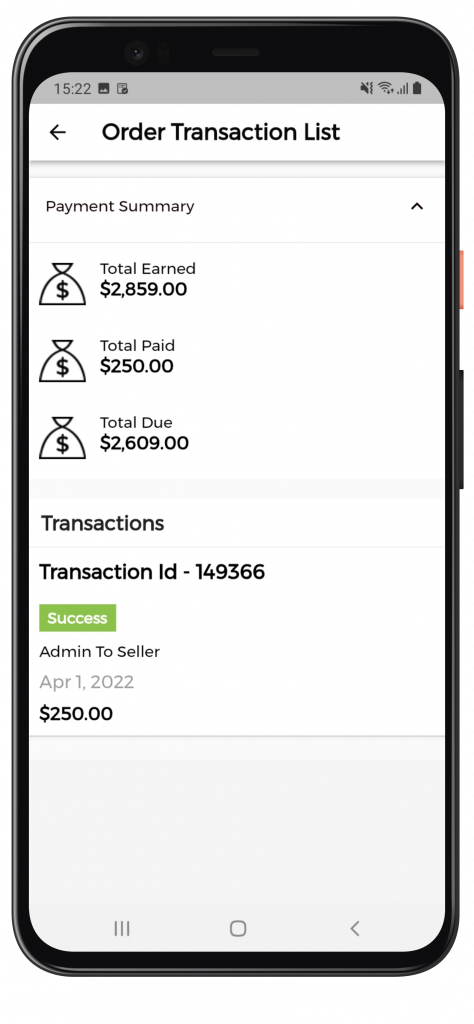
Order transaction list
Sellers can check their order transactions list such as Orders pending, cancel, and completed.
Currency and language
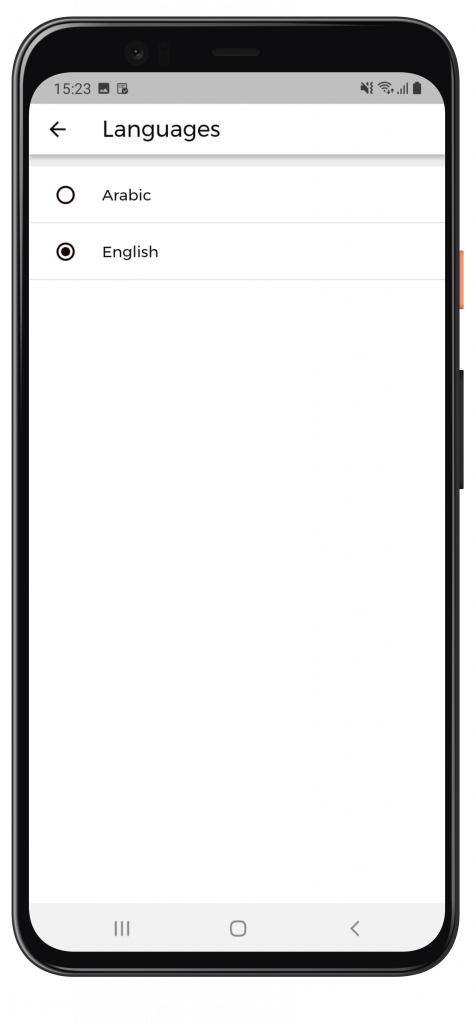
It has a feature called Multiple Store Views, which allows the user to personalize the Store View in a variety of languages, including English, Arabic, French, German, and others.
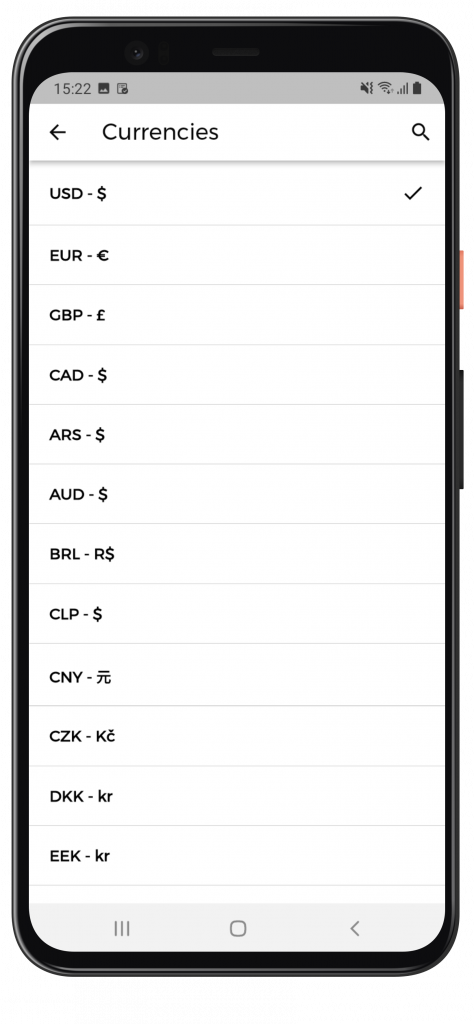
The consumer can choose a suitable currency based on their needs. Wherever the price of the product is present, the client can observe the change in currencies.
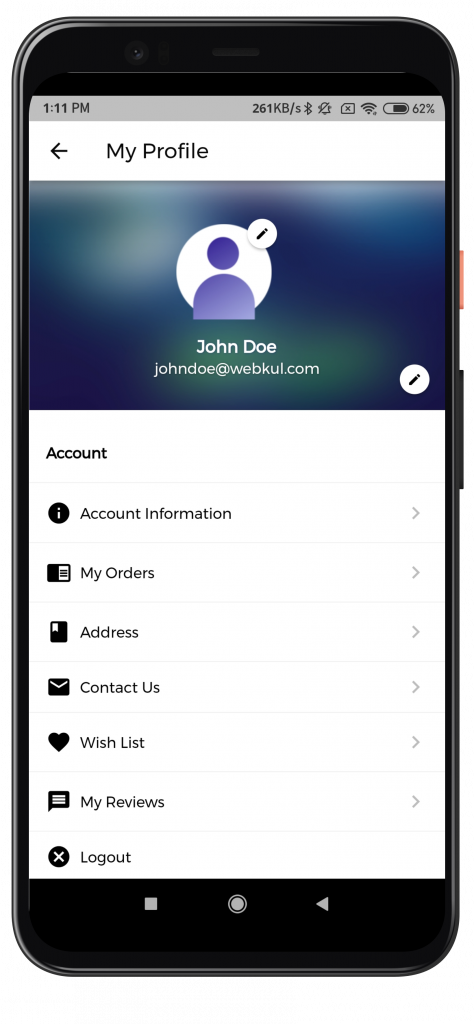
Account Dashboard
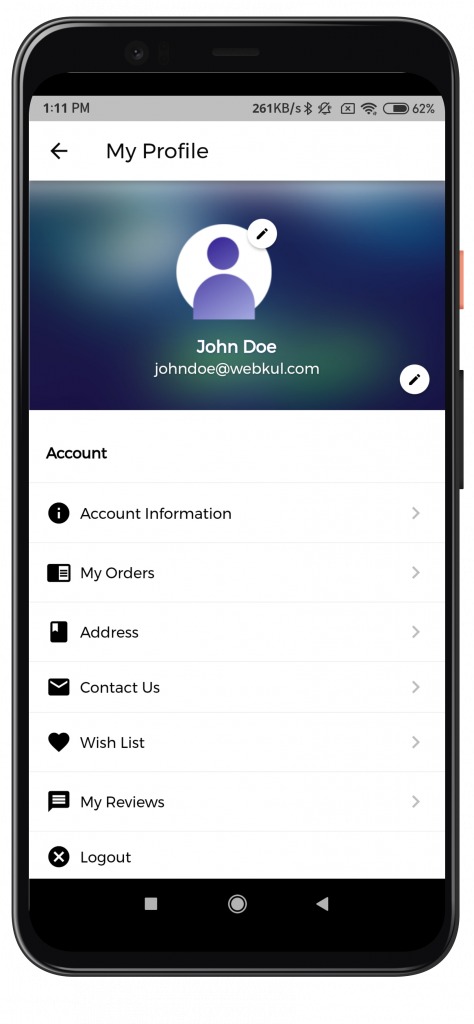
Users can manage their personal information, address information, orders, and goods returns under “My Account.”
Register and Sign In
Customers can use the essential fields to log in and register for an account.
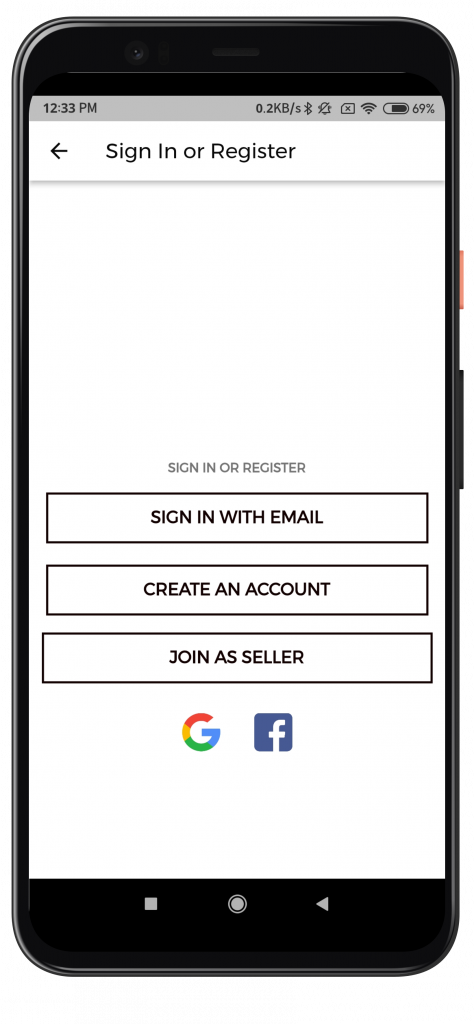
Note – Social login is a paid feature. To know more click here.
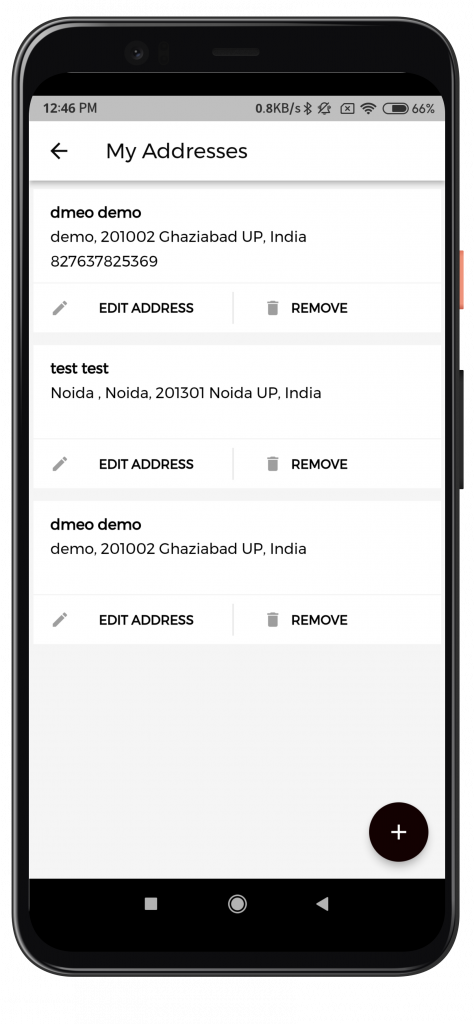
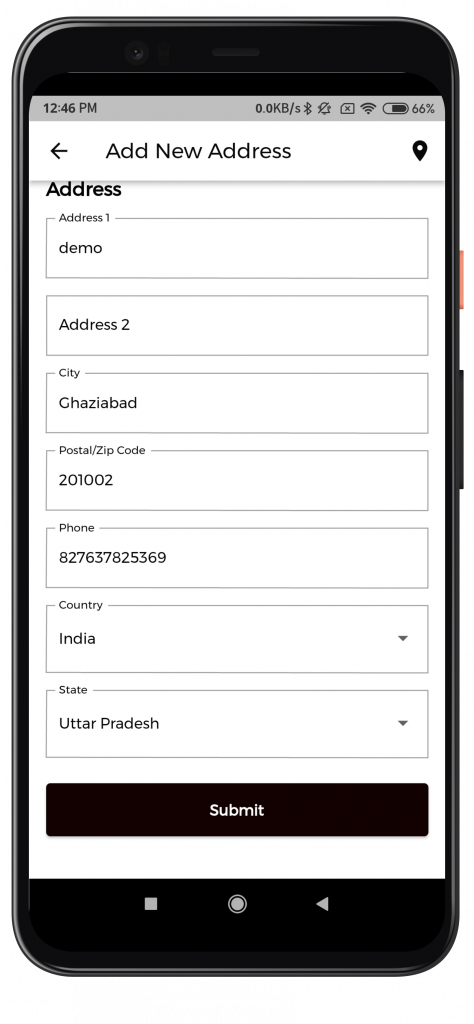
Address Details
The user can edit, remove, or add new addresses in the address book. When changing the address, the user will present with a form similar to that found on the Shopify website.
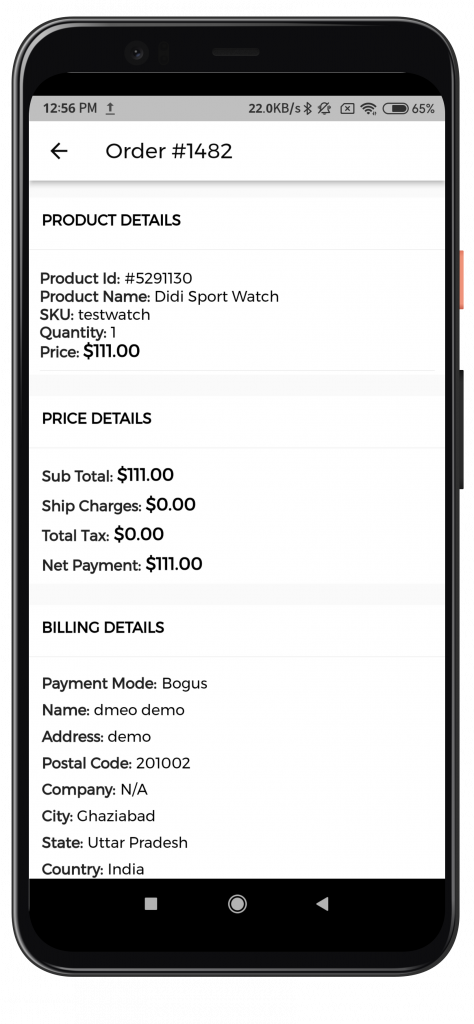
Order Details and History
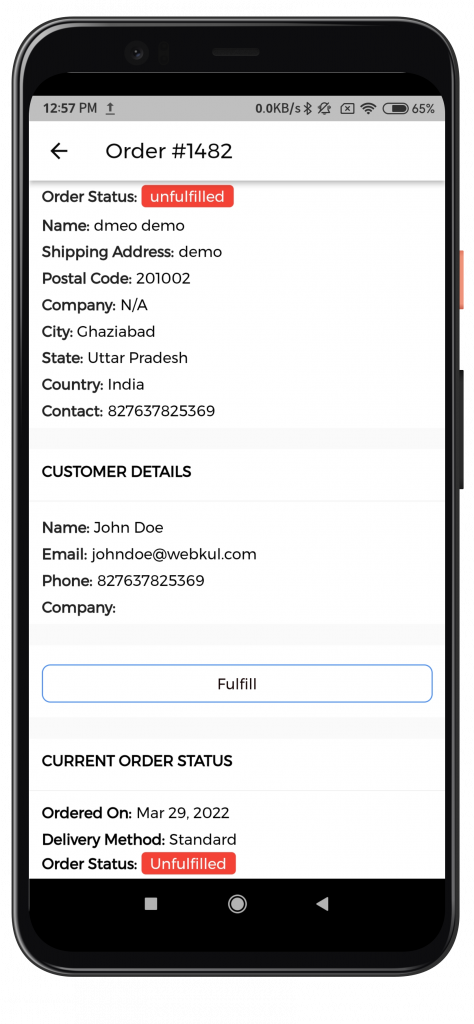
Users can see a list of orders they’ve placed in their order history and information. Order details such as the order reference number, date, status, payment method, and total price can view by users.
Push Notifications
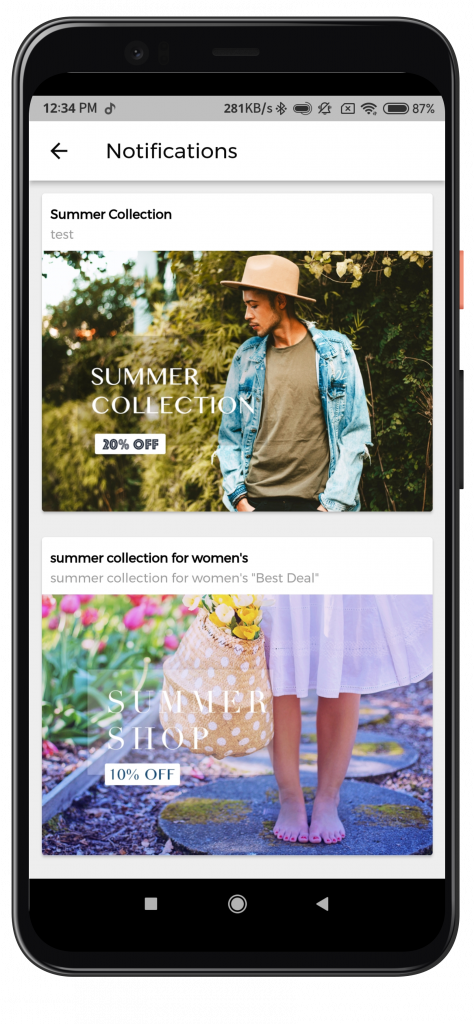
From the back end, the admin can send push notifications to all users.
Product Sharing
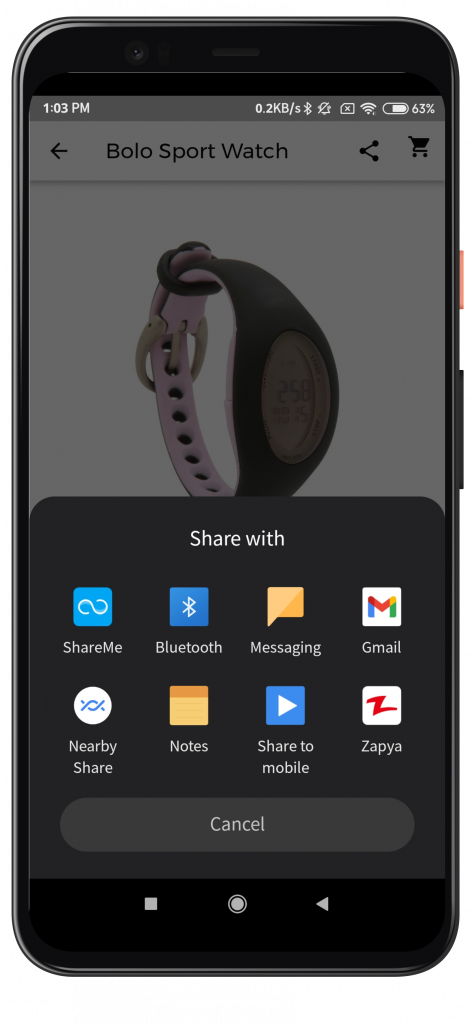
This app allows customers to share their purchases with others via email, social networking, and Bluetooth, among other methods.
Shopping Cart
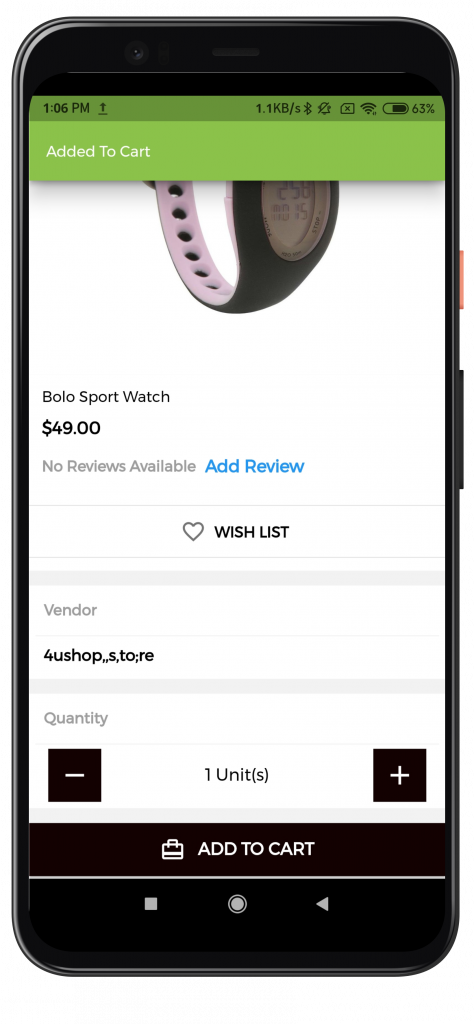
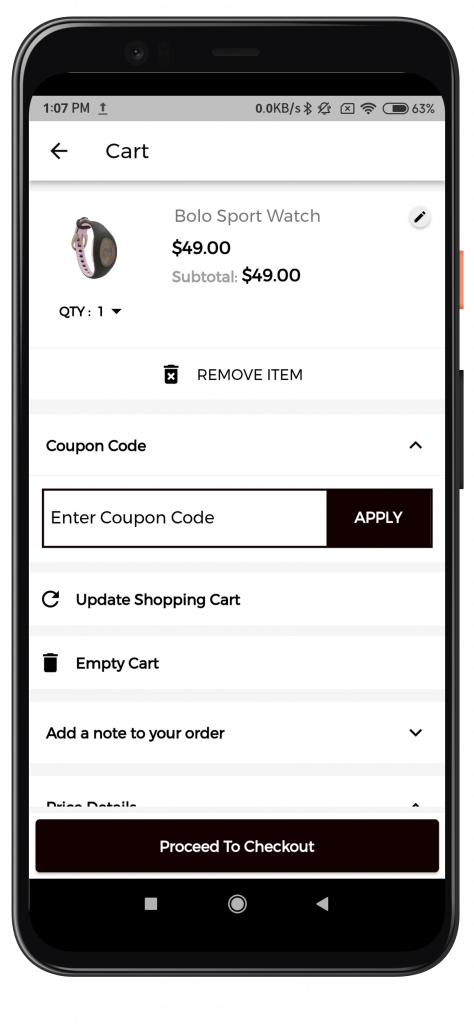
The cart tab will show you the things you’ve placed in your cart, as well as buttons to checkout and continue shopping.
Furthermore, on the cart page, the user may see the product name, quantity, price, and shipping cost associated with the cart, as well as adjust the quantity of the product.
In addition, if a voucher is available, the customer can apply it from this page.
Seller End View
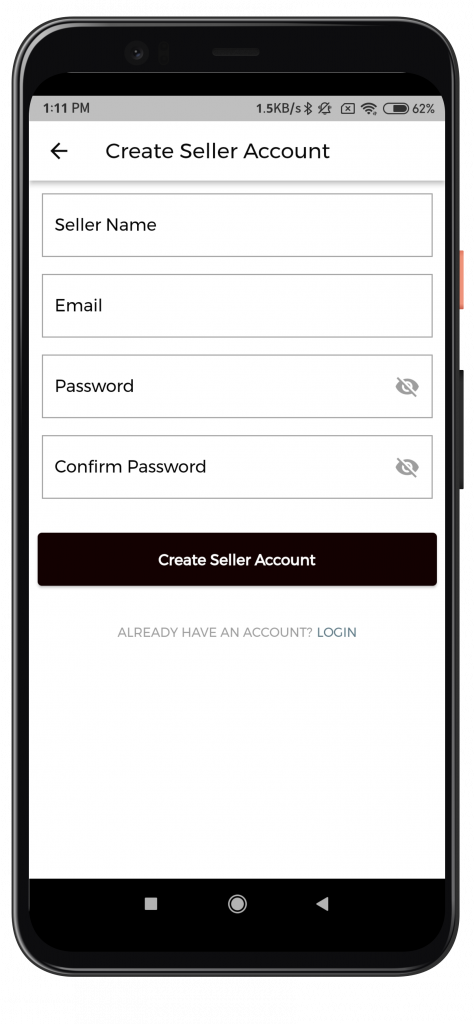
Customers can apply to be a seller on the marketplace through the App.
Seller Dashboard
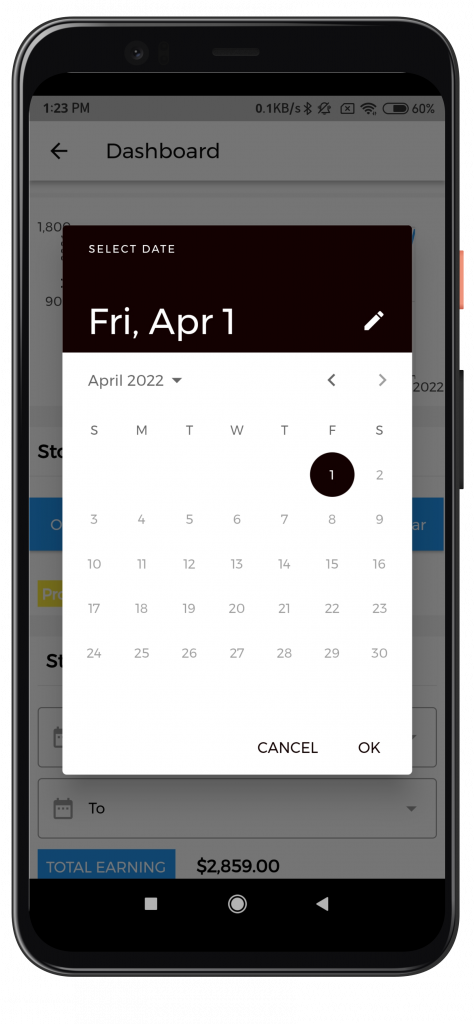
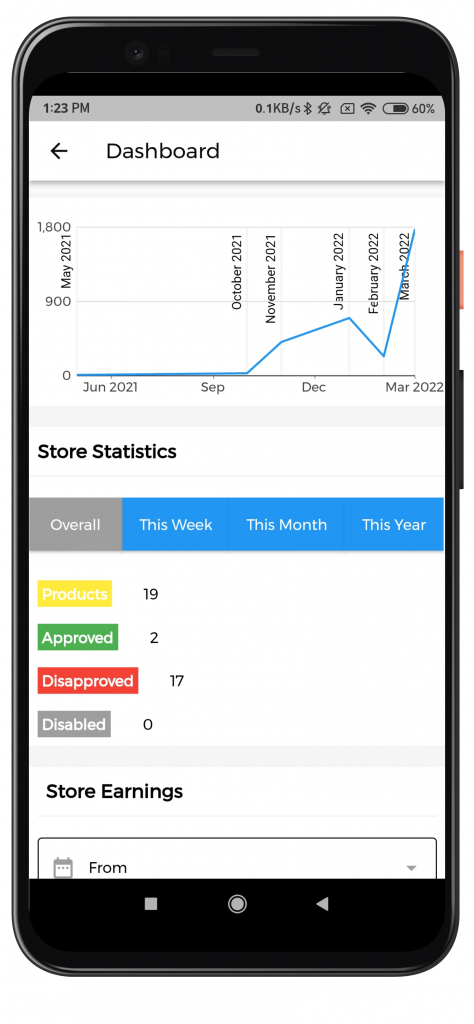
This will display the Order graph as well as five recent orders. The Seller can easily change the dates and see how the graph changes as a result.
Seller Profile
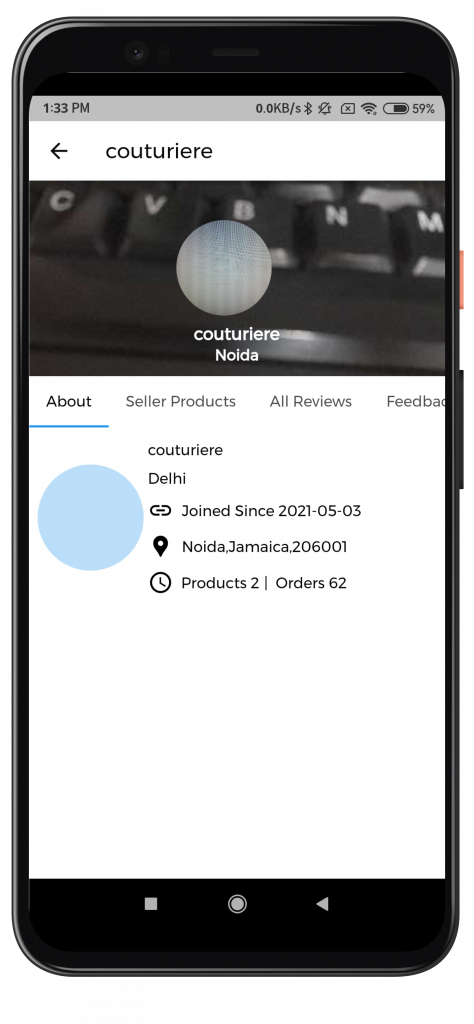
The seller can see their details, products, and customer feedback on the Seller profile page.
Sellers Orders
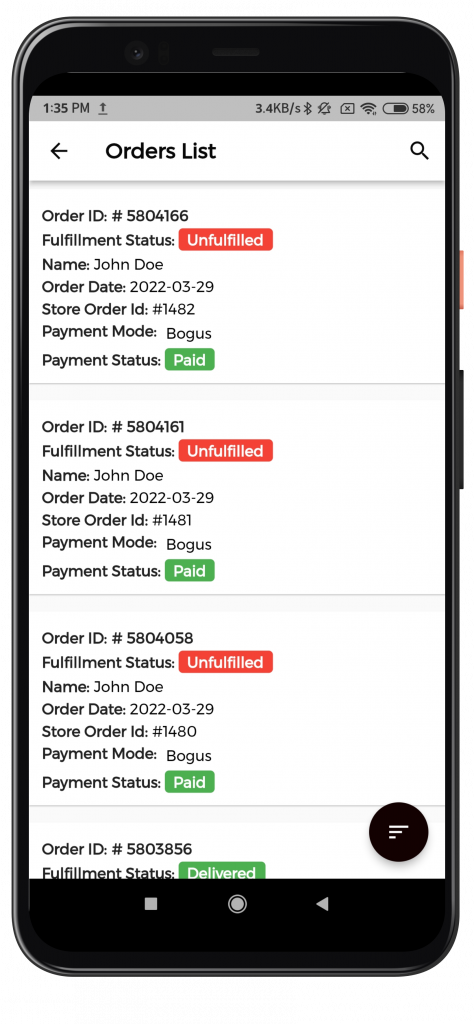
Sellers can view the list of orders placed for their products in the seller order tab. When a seller clicks on an order, they may check the order’s details and change the order’s status.
Support
For any kind of technical assistance or query, please raise a ticket or send us a mail at [email protected]
Also, please explore our Shopify development services and a vast range of quality Shopify add-ons.